TrueFiling has been designed with an intuitive user interface that enables you to easily and quickly upload filing documents, specify service recipients, and submit your filing bundle to the court.
The navigation pane, located on the left side of the interface, enables quick access to whatever functionality you need - whether it's searching for a case to file against, creating a filing for court submission, adding a payment account, or specifying your notification settings.
Main Pages |
|
File |
Use to file against an existing case or to initiate a new case. See File to an Existing Case or Initiate a New Case. |
Case Search |
Use to locate an existing case. Once located, you can launch the Case Details page where you can start the filing process, add case contacts, view submitted filings, and download documents related to your filings. See Perform a Search to Access your Case. |
History |
Use to view and access the filing and payment histories of yourself and your connections. See Filing History and Properties. |
Favorites |
Use this page to quickly access cases you've identified as Favorites. See Add or Remove a Case as a Favorite. |
Settings |
Use to view and specify details regarding your contact information, connections, payment accounts, and notification settings. See Update your Contact Information, Manage your User Role, TrueFiling Connections, Manage your Payment Accounts, and Specify your Notification Settings. |
Resources |
|
Help / Support |
Use to access our TrueFiling Help system, which includes training videos and quick videos. |
Email Activity |
Use to view details on issues related to your email address or the email address of one of your connections. See Are Emails from TrueFiling being Blocked? for details. |
The court can publish special information and messages to filers on these pages:
Create Filing page
Case Search page
Case Details page
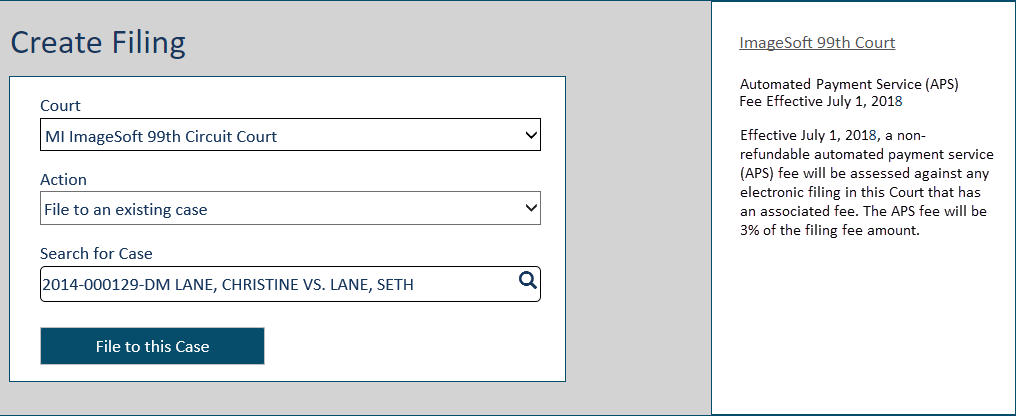
To illustrate using the Create Filing page:
Once you select the court, any information or messages specific for that court are displayed on the right side of the page.
If no messages have been configured by the court, the pane will not display.